
True story – While looking through client folders a few days ago, we came across a brief WordPress tutorial created for a client. We thought, “Why not share this with our readers?” Sometimes, that’s all it takes to find some content gold – and here it is: a classic case of repurposing content! Of course, the images needed to be updated for the current WordPress version, but hey… success takes work.
WordPress Dashboard
WordPress has a convenient little dashboard that pops up as soon as you sign in. For users new to WordPress, most of what comes up is unimportant. As you get more proficient in use, however, you’ll end up with more information on your dashboard (Click the screenshot for a larger view).
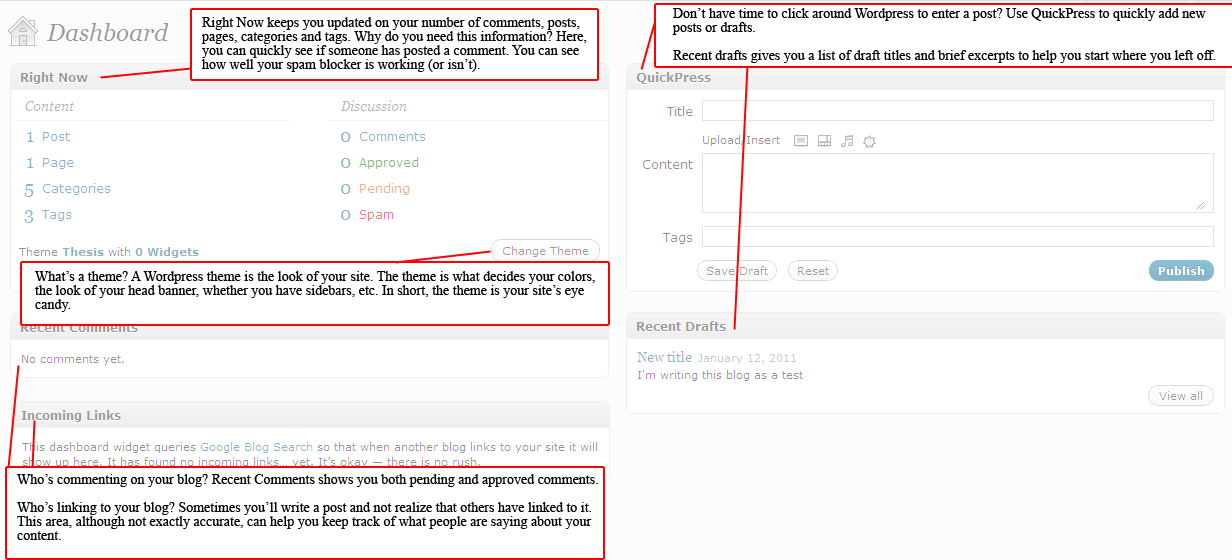

On the dashboard, you can also watch the number of tags and categories… if you start getting up in the triple digits you know it’s really time to clean them up. You see, tags and categories are kind of like that once-empty closet. At first, you thoughtfully put items in there, hung them up nicely or carefully packed them in a box. A year later…
For SEO purposes, as well as for any “related posts” plugins, you want to keep your tags and categories as neat as possible.
On to the WordPress Navigation
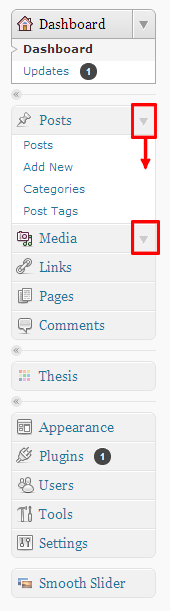
The WordPress navigational area is on the left-hand side of every page in the administration area. Looking at the red boxes on the image to the left, you’ll notice a little arrow. Each heading (“Posts”, “Media”, “Links”, etc.) shows this arrow when you run your mouse over it. Clicking the arrow will cause a drop down box to appear (see “Posts”).
Note: if you just click on the heading and not the arrow, WordPress will take you to the main administration page for that area.
About Posts and Pages
We’re often asked about the difference between posts and pages. A page is sticky; it’s linked in the menu or in some other manner. Normally, pages are used when you have information you always want available to visitors. As an example, a page might be “About”.
A post, on the other hand, isn’t linked through the navigation. Posts show up in archives and categories. They’re stacked, one on top of the other on the blog’s home page (see our home page for an example). Because they’re stacked, they can quickly get buried under newer posts.
WordPress Functions
Most want to be able to add pages, posts, images and other media. You can do all of this from the “Posts” or “Pages” administration area. Since they look the same and work (mostly) the same way, we’ll use the “Posts” area for the walkthrough.

Click on “Posts” and go to the main administration page. You’ll see a list of your current posts and drafts, who wrote them, what category they’re in, and what tags you’ve used to describe them.
Click on “add new”, which will take you to the posting area.
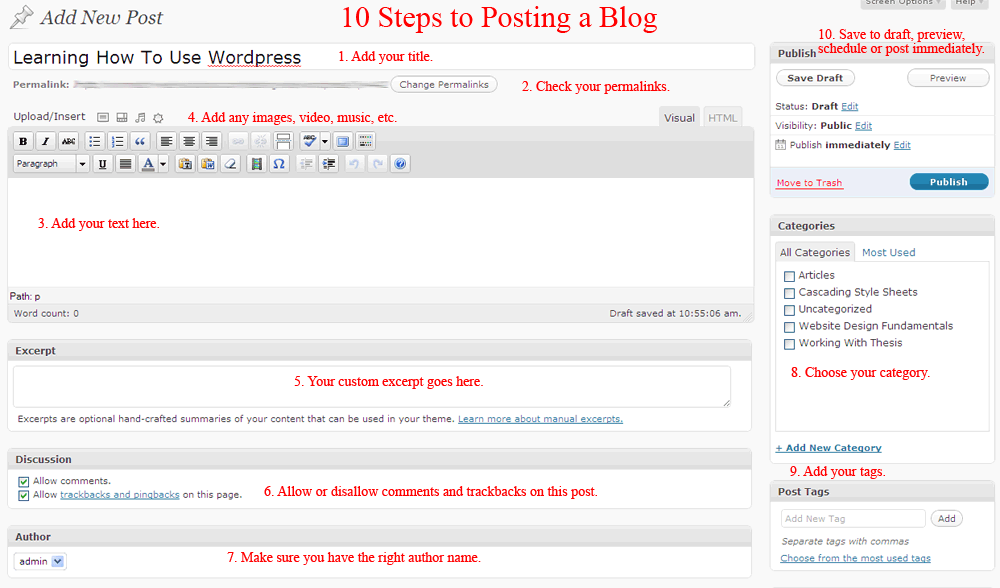
Note: Your title also becomes your URL (if you have pretty permalinks turned on).
Setting Up Pages
Creating pages is done much the same way as posts, with one major difference.
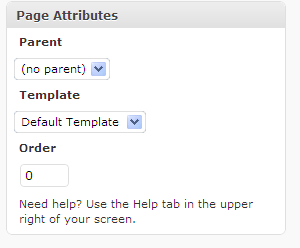 The page attributes can be found either on the right side of the dashboard or below the area where you enter your blog (depending on how your dashboard is set up).
Parent
The Parent attribute is for a series of pages. For example, if you offer workshops in different cities, you might have “Workshops” in your main menu. By adding a page for “Chicago” under the Parent “Workshops”, a dropdown will show the link to the “Chicago” page.
Template
If your theme offers different templates (example: “sidebars” and “nosidebars”), the “Template” attribute allows you to select which one you want for the specific page.
Order
“Order” is another menu item. Normally, WordPress sets the order of your navigation menu alphabetically. However, maybe you want “Services” to come before “About”. In this case, you would set “Services” to the #2, and “About” to #3 (Home takes the #1 spot).
Changing Themes
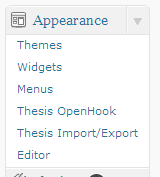 Click on “Appearance” in the WordPress navigation bar. If you don’t have the Thesis Theme or the Thesis Openhook plugin, these options will not be available to you.
Click on “Themes”, which will take you to the Themes main administration page. Click the “Change Theme” button and you’ll be taken to the theme dashboard.
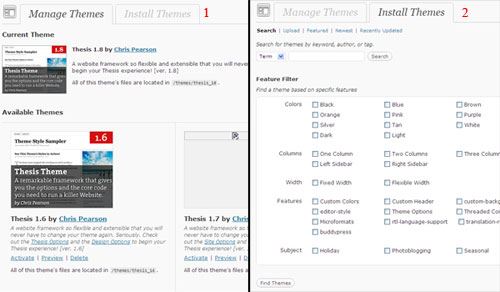
Manage Themes (# 1 in screenshot below) allows you to choose between themes you’ve already installed. Install Themes (# 2 in screenshot below) allows you to search for new themes based on your set criteria, choose and then install all from one page.
Obviously, many more functions are available in WordPress than one article can cover, but this should give you a basic overview of how to use your WordPress blog.
A Final Note on WordPress
– And if that’s not enough to change your mind, here are three fantastic lists of professional and/or corporate WordPress CMS site examples:
- 20 Remarkable Examples of Websites Powered by WordPress
- Have you used WordPress as a website or blog? What do you think of it? Has it worked well for your site? Share with our readers!


































2 Responses
We switched from a static site to a WordPress site because it made it far, far easier to add new content to the site and change existing content.
The only issue with WordPress is that when something goes wrong, it can go very, very wrong. Upgrading WordPress, for example, is normally as simple as just pressing the upgrade button, but once it caused our entire site to go down. It is imperative to keep things backed up at all times and there are a few plugins that can help with this.
Regards
David of ppi claims
Hiya!. Thanks for the info. I’ve been digging around looking some info up for school, but there is so much out there. Yahoo led me here – good for you i suppose! Keep up the good work. I will be coming back over here in a couple of days to see what’s new.
Works great for other bloggers and myself! 🙂
Website: Professional Art Organizations